Try Proficia360 the way your users will.
The demo runs the same guided path a customer follows after go-live: a five-step setup wizard, then the four-step evaluation lifecycle. Register yourself, work through it once over two weeks, and you will have seen every core surface of the platform.
- Open self-registration — create your own account, no approval needed.
- Two weeks to evaluate, on a workspace private to the account you create.
- The full AICB Future Skills Framework taxonomy is already loaded.
Demo address: demo.proficia360.com
Two passes: set it up, then run it.
The first pass is one-off configuration. The second is the recurring workflow every person in your organisation touches. Do them in this order and the platform explains itself.
Pass 1 · Setup
Create your account and complete the setup wizard: organisation details, the four system roles, and your first invitations.
Jump to the setup walkthroughPass 2 · Evaluate and act
Follow the process guide inside the workspace through Evaluate, Review and score, Build the development plan, and Review outcomes.
Jump to the lifecycleFive steps from empty account to live workspace.
These are the screens you get immediately after registering — the same wizard every customer runs on day one, with the product’s own wording.
Step 1 · Welcome
Welcome
“Let’s get your organization set up in just a few steps. You can always customize these later.”
What to do
Read the checklist of what the wizard will do, then continue. Nothing is written to the graph yet.
Step 2 · Organisation
Organization Details
“Confirm or update the organization details you provided during registration.”
What to do
Name the organisation, add a description, and save. This creates your Organization node — everything else you do hangs off it.
Step 3 · Roles
Review Roles
“These are the default system roles created for your organization. You can customize them later.”
What to do
Open each of the four system roles and look at the feature badges on them. That screen is the whole permission model in one view.
Step 4 · Team
Invite Team
“Send invitations to colleagues who should join your organization.”
What to do
Invite a second persona — an Employee and a Line Manager — so you can compare what each role is allowed to open.
Step 5 · Done
All Done!
“Your organization is configured and ready to go. Here’s a summary of your setup.”
What to do
Check the summary, then land on the workspace dashboard and open the process guide.
The process guide is the product tour.
Once the wizard is done, the workspace opens with a process guide: “Follow the evaluation lifecycle from assessment through outcome verification with a clear step-by-step guide.” Each card lists its key actions and links straight to the screen that performs them.
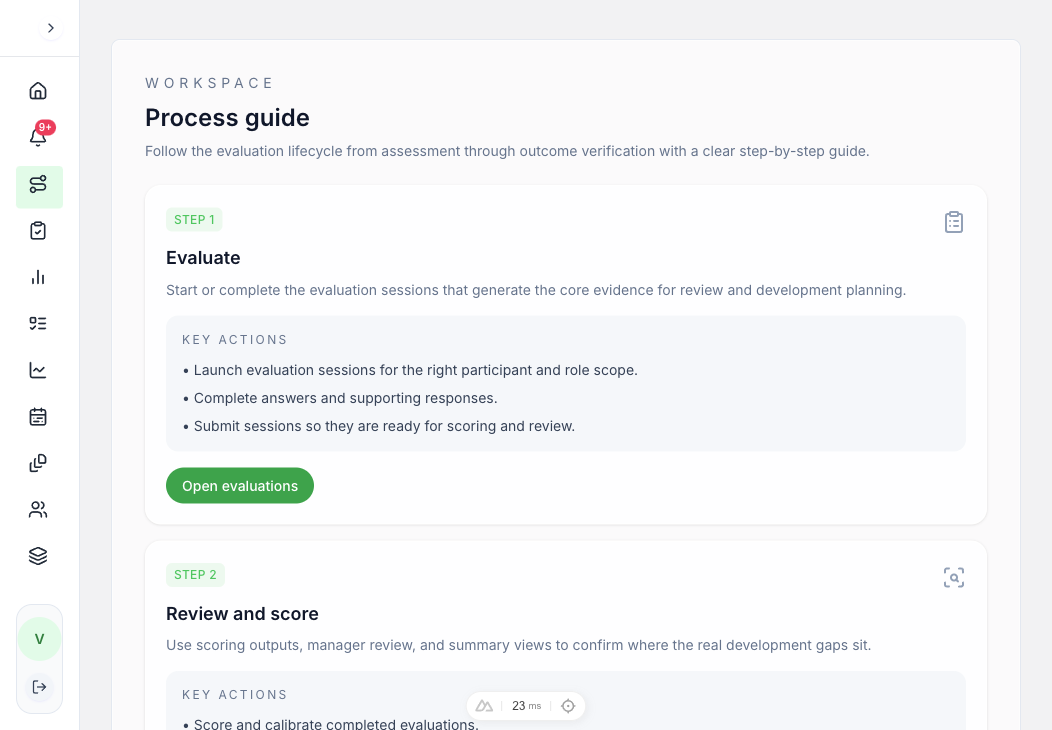
Evaluate
Start or complete the evaluation sessions that generate the core evidence for review and development planning.
Key actions
- Launch evaluation sessions for the right participant and role scope.
- Complete answers and supporting responses.
- Submit sessions so they are ready for scoring and review.
In-app link: Open evaluations
Review and score
Use scoring outputs, manager review, and summary views to confirm where the real development gaps sit.
Key actions
- Score and calibrate completed evaluations.
- Review summaries, gaps, and manager notes.
- Finalise reviewed sessions when the assessment is ready to drive action.
In-app link: Open review queue
Build the development plan
Convert reviewed findings into tracked action items with owners, due dates, and expected follow-through.
Key actions
- Add reviewed gap items or custom actions into the plan.
- Assign owners, priority, and due dates.
- Track updates and keep execution visible.
In-app link: Open development plan
Review outcomes
Close the loop by confirming what was completed, what worked, and what still needs follow-up.
Key actions
- Capture completion notes when actions are finished.
- Verify outcomes or mark them for follow-up.
- Use monitoring views to intervene where outcomes are slipping.
In-app link: Open outcome monitoring
See what each persona is allowed to open.
Four system roles are created for your organisation during setup, each scoped to a subset of the features your subscription includes. Invite a second account per persona in the wizard and the difference becomes obvious — the navigation itself changes.
Org Admin
Everything the organisation is subscribed to
The widest view in the demo. Use it to see how the skills library, hierarchy, users and evaluation cycles are configured before anyone starts assessing.
Try this
- Run the setup wizard end to end
- Browse the job clusters and role-skill mappings
- Create an evaluation cycle and pick its template
HR Manager
Manage HR operations, evaluations, and reports
The day-to-day owner of the platform. This is the persona to tour if you sit in HR, People Ops or L&D.
Try this
- Launch a session for a participant and watch it appear in the review queue
- Open the evaluation reports and export the CSV
- Turn a reviewed gap into a plan item with an owner and a due date
Line Manager
Review evaluations and manage team development
What a team lead sees: enough to score, review and follow through, without the configuration surface.
Try this
- Score and calibrate a submitted evaluation
- Review the gap summary and manager notes, then finalise the session
- Check monitoring for the items that are slipping
Employee
Complete evaluations and view development plans
The participant view — deliberately the smallest one. Good for showing staff exactly what is asked of them.
Try this
- Answer an evaluation and submit it
- Open your own profile and skill gaps
- Update the progress on your development plan
Tick off each capability as you try it.
Ten features make up the workspace. Work through them in one sitting and you will have touched everything a buyer needs to evaluate — your progress stays in this browser only.
0 of 10 tried
A populated graph, not an empty shell.
The skills taxonomy is shared reference data and comes pre-loaded, so you can explore roles, clusters and proficiency levels immediately. Your own structure — organisation, positions, people — is yours to create, which is why the setup wizard comes first.
191
Job roles
Pre-configured, expandable, mapped to skills
222
Skills
Across 27 skill clusters
1,110
Proficiency levels
With behavioural indicators
24
Sub-sectors
Industry coverage in the framework
Private to you
The workspace you create belongs to your account. Other demo visitors cannot see or reach it, so there is nothing you can accidentally disturb for anyone else.
Use placeholder people
Nothing here connects to your HR system. Please use invented names and emails for colleagues and participants rather than real employee records — it keeps the trial out of scope for personal-data handling.
When the two weeks end
Your trial runs for two weeks from registration. Afterwards the workspace may be reset or retired, so export the reports you want to keep before then. Continuing means deploying — talk to us and we build it on your own structure.
Ready to run this on your own structure?
Tell us what you found in the demo. We will load your architecture — or the standard framework — and walk your team through configuration and go-live.